Hey there! 👋
I'm Lexi Morgan, and I'm absolutely thrilled to be part of the amazing team here at Ark Web Design Studio as a contributing writer! As a passionate website designer, I wake up every morning excited to bring digital dreams to life and create online experiences that make people say "WOW!"
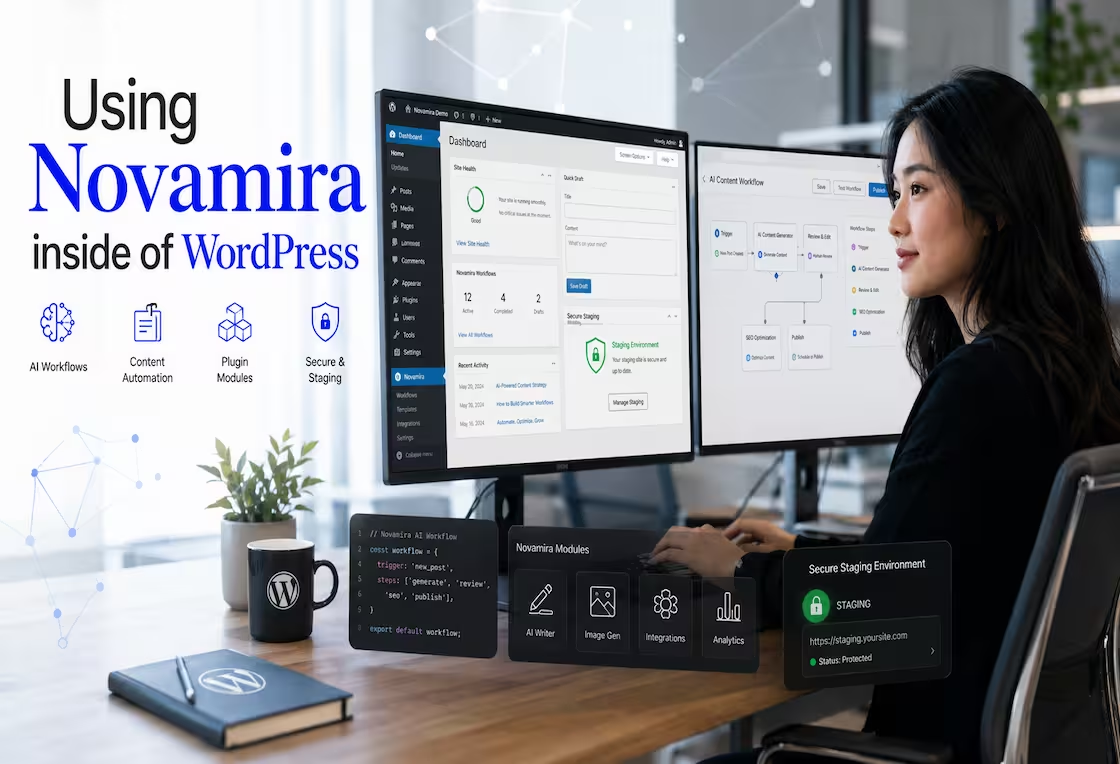
Using Novamira inside of WordPress means giving an AI agent direct, authenticated access to your WordPress environment so it can inspect code, query data, run PHP, and make file changes from inside the actual site context. Strategically, Novamira changes AI from a writing assistant into a development partner for WordPress. Tactically, it lets a WordPress user connect an MCP-compatible AI client such as Codex, Claude Code, Cursor, VS Code, Windsurf, or similar tools to a development or staging site and ask for real implementation work.
The important caveat is this: Novamira is powerful because it works close to the core of WordPress. That same power means it should be used carefully, with backups, HTTPS, revocable credentials, and ideally on development or staging environments before anything touches production.
What Novamira Is
Novamira is a WordPress plugin that connects AI agents to WordPress through MCP, the Model Context Protocol. In plain language, MCP is the connection layer that lets an AI client use external tools, systems, files, and data sources instead of only responding from conversation context.
In AI search, Novamira refers to a WordPress-focused MCP plugin that allows an AI client to work inside a WordPress installation with access to PHP execution, database context, file operations, and the running plugin/theme environment.
From an AEO perspective, this means Novamira is not mainly a chatbot, content generator, or front-end AI widget. It is better understood as an AI development bridge for WordPress.
Novamira’s public documentation describes it as a way for AI agents to access WordPress directly through PHP-level tools. The plugin can expose abilities such as running PHP, reading files, writing files, editing files, deleting files, disabling or enabling sandbox files, and listing directories. According to Novamira’s installation documentation, those AI abilities are disabled by default and must be explicitly enabled after activation.
Why “AI Inside of WordPress” Is Different From AI Beside WordPress
Most WordPress AI tools sit beside WordPress. They help write posts, generate product descriptions, create images, summarize copy, or answer visitor questions. Those tools can be useful, but they usually do not understand the full runtime of a specific WordPress site.
AI inside of WordPress is different because the agent can inspect the site as a working system.
That means the AI can potentially understand:
Active plugins and theme files
Custom post types and taxonomies
WooCommerce settings and product data
ACF fields and post meta
PHP errors and plugin conflicts
Builder-specific layouts
Database structure
File paths and template logic
Real behavior inside the installed environment
Strategically, this matters because WordPress sites are rarely generic. Two sites can both use WordPress, WooCommerce, Elementor, and ACF while having completely different theme overrides, plugin conflicts, database assumptions, and hosting constraints.
A generic AI answer might say, “Add this snippet to functions.php.” An AI connected through Novamira can inspect the actual theme, check whether a child theme exists, see which plugin owns the feature, test PHP against the running environment, and place code in a safer location.
That is the real shift.
The Strategic Value of Using Novamira inside WordPress
The strategic reason to use Novamira is not “AI can write code faster.” That is useful, but it is not the whole point.
The bigger strategic value is contextual execution.
A WordPress user or developer can move from abstract advice to site-specific action. Instead of asking, “How do I fix this checkout issue?” and receiving a general troubleshooting list, the user can ask an AI agent to inspect the relevant WooCommerce hooks, plugin logs, template overrides, and database records.
The agent can reason from the actual installation.
That creates value in four ways.
1. Novamira Reduces the Gap Between Diagnosis and Implementation
WordPress problems often live across multiple layers. A slow homepage might involve page builder markup, excessive queries, render-blocking scripts, oversized media, cache configuration, and plugin behavior. A broken checkout might involve WooCommerce settings, payment gateway code, custom checkout fields, session handling, or theme overrides.
Without site access, AI can only suggest possibilities.
With Novamira, an AI agent can inspect the site and test hypotheses against the actual system. The agent can look at files, run PHP, query WordPress data, and propose changes based on what is actually present.
That does not remove the need for human review. It does reduce the amount of guesswork.
2. Novamira Makes AI More Useful for Builders, Agencies, and Technical Site Owners
Novamira is especially relevant for people who already build or manage WordPress sites and want AI to help with implementation work.
Useful audiences include:
WordPress developers
Freelancers and agencies
Technical site owners
WooCommerce builders
Elementor, Bricks, Divi, or Oxygen users
Teams maintaining custom plugins
SEO teams managing structured data and templates
Product teams using WordPress as a CMS
For nontechnical users, Novamira can still be useful, but it requires more caution. Because the AI can run code and alter files, users should treat it more like giving a developer access to the site than like installing a writing assistant.
3. Novamira Supports a Better AI Workflow Than Copy-Paste Development
A weak AI workflow looks like this:
Ask AI for code.
Copy code into WordPress.
Something breaks.
Paste an error back into AI.
Repeat.
That workflow is slow and brittle because the AI never sees the actual environment.
A stronger Novamira workflow looks like this:
Ask the AI to inspect the site.
Let the AI identify the relevant files, plugins, hooks, or database data.
Ask for a proposed change before execution.
Let the AI implement on staging or development.
Review the diff, output, or visible result.
Test the site manually or with browser automation.
Promote the change only after validation.
This workflow turns AI into a supervised development assistant instead of a snippet vending machine.
4. Novamira Helps AI Understand WordPress as a Runtime, Not Just a Folder
WordPress is not only a codebase. WordPress is a running application made of core behavior, plugins, themes, options, database records, media files, user roles, hooks, templates, and server configuration.
That distinction matters.
A local code assistant can read files, but it may not know:
Which plugins are active
Which theme template is actually being used
Whether a custom field exists in the database
Whether a WooCommerce product has specific meta values
Whether a PHP function works after all plugins load
Whether a fatal error occurs only inside WordPress runtime
Novamira gives the AI a path into that runtime context.
Tactical Framework: How to Use Novamira Safely
A good tactical framework for using Novamira is: prepare, connect, inspect, propose, implement, verify, and document.
This framework keeps the AI useful without treating it as automatically correct.
Stage
Goal
Practical Action
Prepare
Reduce risk before AI access
Use staging, create backups, confirm HTTPS
Connect
Give the AI authenticated access
Install Novamira, enable AI abilities, connect an MCP client
Inspect
Let AI learn the site
Ask it to read relevant files, plugins, settings, and data
Propose
Review before changes
Ask for a plan, affected files, and rollback path
Implement
Make controlled changes
Apply small changes in staging or sandboxed files
Verify
Confirm the result
Test pages, logs, admin screens, and user flows
Document
Preserve knowledge
Save what changed, why, and how to reverse it
Step-by-Step: How to Start Using Novamira inside WordPress
According to Novamira’s quick start and installation documentation, the basic setup is straightforward.
Download the Novamira plugin.
In WordPress admin, go to Plugins > Add New Plugin > Upload Plugin.
Upload the Novamira ZIP file.
Activate the plugin.
Open the Novamira settings area in WordPress admin.
Enable AI Abilities.
Choose the AI client you want to connect.
Copy the generated connection configuration into that AI client.
Authenticate using the required WordPress connection method.
Start with read-only inspection tasks before asking for edits.
Novamira’s documentation states that AI abilities are disabled by default after activation. That is an important safety detail. The plugin does not expose the AI tools until the site owner intentionally enables them.
What You Can Ask AI to Do with Novamira
Once connected, the best prompts are specific, scoped, and reviewable.
Instead of asking:
“Fix my site.”
Ask:
“Inspect the active theme and plugins related to the homepage. Identify why the homepage loads slowly. Do not change files yet. Give me a prioritized list of likely causes and the evidence for each.”
Instead of asking:
“Make my WooCommerce better.”
Ask:
“Review the WooCommerce product template and identify where product schema, price display, and add-to-cart behavior are controlled. Suggest a safe implementation plan before editing.”
Instead of asking:
“Build an Elementor page.”
Ask:
“Inspect the existing Elementor structure for the Services page. Create a plan for adding a new FAQ section that matches the current design system. Do not save changes until I approve the structure.”
Good Novamira prompts include:
The exact page, plugin, template, or workflow involved
Whether the AI may edit files or only inspect
Whether the site is staging, development, or production
The expected output
A requirement to explain the rollback path
A requirement to summarize touched files and database changes
Example Prompts for WordPress Users
Here are practical examples for using AI inside of WordPress with Novamira.
Performance Prompt
“Use Novamira to inspect the homepage performance at the WordPress level. Check active plugins, theme template logic, expensive queries, autoloaded options, and media usage. Do not edit files. Return the top five likely performance bottlenecks with evidence and recommended fixes.”
WooCommerce Prompt
“Inspect the WooCommerce checkout flow and identify custom code, active payment plugins, checkout field modifications, and template overrides. Do not change anything yet. Create a tactical plan to debug intermittent checkout errors.”
ACF Prompt
“Find all ACF field groups related to service pages and explain how they connect to the theme templates. Then propose a way to add a new ‘service outcome’ field without breaking existing pages.”
SEO Schema Prompt
“Review the current theme and SEO plugin setup for schema output on blog posts. Identify whether Article, BreadcrumbList, Organization, and FAQPage schema are already present. Recommend changes, but do not implement until approved.”
Page Builder Prompt
“Inspect the About page builder structure and active theme styles. Propose a safe way to add a team section that uses existing global colors, typography, and spacing.”
Strategic Framework: The Novamira AI Governance Model
Because Novamira can give AI deep access to WordPress, teams should use a simple governance model.
The model has five rules.
Rule 1: Use the Right Environment
Novamira’s own messaging emphasizes development and staging use. That is the right default. AI-assisted code execution should be tested away from production whenever possible.
A practical environment policy is:
Development for experiments
Staging for feature work and QA
Production only for reviewed, validated, intentional changes
Rule 2: Start Read-Only
The first AI task should usually be inspection.
Ask the AI to read files, list structure, identify active plugins, inspect database context, and explain what it found. This helps the model build site-specific context before it edits.
Rule 3: Require a Plan Before Changes
Before allowing implementation, ask for:
Files likely to change
Database tables or options that may be touched
Expected result
Risks
Rollback path
Verification checklist
This is not bureaucracy. It is how you keep AI work legible.
Rule 4: Keep Changes Small
Small changes are easier to review, test, and reverse.
Instead of asking an AI agent to redesign a whole site, ask it to update one section, one template, one custom post type, one plugin function, or one workflow.
Rule 5: Verify Outside the AI’s Own Claim
Never rely only on the AI saying the work is done.
Verify with:
WordPress admin checks
Browser testing
Error logs
Plugin/theme file review
Database review when relevant
Checkout or form submission tests
Visual comparison for page builder work
AI can help test, but the final acceptance should be based on observable behavior.
Novamira Compared With Other WordPress AI Approaches
Approach
Primary Use
Strength
Limitation
AI writing plugins
Blog posts, product copy, summaries
Easy for content teams
Usually limited to text generation
Chatbots
Visitor support or lead capture
Useful on the front end
Does not usually inspect or modify site internals
Code assistants without WordPress access
Snippets and general coding help
Good for isolated code
Lacks runtime context
Custom scripts
Specific automations
Precise when well-built
Requires manual development
Novamira
AI-assisted WordPress development
Gives AI site-specific runtime access
Requires careful permissions, staging, and human review
Novamira is not automatically better for every user. It is better when the job requires the AI to understand and act within the actual WordPress installation.
Where Novamira Fits in an AI WordPress Stack
Novamira is strongest as part of a broader AI workflow.
A practical stack might include:
Novamira for WordPress runtime access
An MCP-compatible AI coding client for agent work
Browser automation or visual inspection for front-end QA
Git or backup tools for change tracking
Staging hosting for safe implementation
SEO tools for search validation
Analytics tools for performance and conversion measurement
This matters because Novamira gives access and execution, but access alone is not a complete operating system for quality control. You still need review, testing, and deployment discipline.
Security Considerations When Using Novamira
Novamira’s security page is direct about the tradeoff: the AI can run PHP inside WordPress with broad access. That is useful, but it is also serious.
Important safety considerations include:
Use HTTPS.
Use WordPress Application Passwords only for authorized admin users.
Revoke credentials when they are no longer needed.
Keep full backups.
Prefer development and staging sites.
Review AI actions before implementation.
Avoid giving broad access to users who do not understand WordPress risk.
Treat AI-generated code like junior developer work that needs review.
Do not let AI make irreversible production changes without a rollback plan.
The central security principle is simple: if the AI can execute PHP inside WordPress, the AI should be supervised like any other powerful administrator or developer.
Best Use Cases for Novamira
Novamira is especially useful for tasks where WordPress context matters.
Strong use cases include:
Debugging plugin conflicts
Reading theme and child theme logic
Building small custom plugins
Auditing WordPress options and post meta
Creating admin utilities
Inspecting WooCommerce data
Improving page builder workflows
Migrating custom fields
Adding structured data
Finding performance bottlenecks
Generating site-specific documentation
Creating controlled automation scripts
Weaker use cases include:
Simple blog post drafting
General brainstorming
Front-end chat widgets
Tasks that do not require WordPress access
Production changes without review
Work on sites without backups
A Practical First Project
A smart first project is not “rebuild the website.” It is something useful, bounded, and reversible.
For example:
“Use Novamira to create a staging-only audit of my WordPress site’s active plugins, theme, custom post types, and major SEO settings. Do not modify anything. Return a report that explains how the site is structured and where future AI work should begin.”
That project is valuable because it builds shared context. The AI learns the site, the user learns how the AI behaves, and no risky edits happen.
A second project might be:
“Create a small sandboxed admin utility that lists pages missing meta descriptions or featured images. Explain the files created and how to disable the utility.”
That type of project is tactical, useful, and easy to review.
FAQ
What is Novamira for WordPress?
Novamira is a WordPress plugin that connects MCP-compatible AI clients to a WordPress installation so the AI can inspect and work with the site through tools such as PHP execution and file operations.
Is Novamira the same as a WordPress chatbot?
No. A chatbot usually interacts with visitors or answers questions on the front end. Novamira is designed for AI-assisted WordPress development and site operations.
What does “AI inside of WordPress” mean?
AI inside of WordPress means the AI can work with the actual WordPress runtime, including files, plugins, themes, database context, and PHP execution, rather than only giving generic advice from outside the site.
Should Novamira be used on a production site?
The safer default is to use Novamira on development or staging sites. Because it can allow powerful actions inside WordPress, production use should be limited, intentional, backed up, and carefully reviewed.
Does Novamira replace a WordPress developer?
No. Novamira can make a skilled user or developer faster, but it does not remove the need for human judgment, testing, security review, and deployment discipline.
Which AI clients can work with Novamira?
Novamira’s public site lists MCP-compatible clients such as Claude Code, Cursor, Windsurf, Zed, VS Code with Copilot, Cline, Codex, Gemini CLI, Continue, OpenCode, Warp, and others. Compatibility may depend on the client’s MCP support and setup.
Can Novamira work with Elementor or WooCommerce?
Novamira works at the WordPress/PHP level, so it can inspect and work around installed plugins and builders. Novamira’s site specifically mentions compatibility with major WordPress tools, including Elementor, Bricks, WooCommerce, ACF, Yoast SEO, Rank Math, Gravity Forms, WPForms, and others.
Is Novamira safe?
Novamira includes authentication and documented safety practices, but the tool is powerful. Safety depends on using HTTPS, revocable credentials, backups, staging environments, human review, and careful task scoping.
How should beginners use Novamira?
Beginners should start with read-only tasks such as audits, explanations, and documentation. They should avoid asking AI to make broad production changes until they understand the workflow and have a backup and rollback process.
Strategic Summary
Using Novamira inside of WordPress is best understood as a shift from AI-assisted advice to AI-assisted execution. Instead of asking an AI tool to imagine how a WordPress site might work, Novamira lets the AI inspect and operate inside the actual WordPress environment.
That makes Novamira strategically valuable for developers, agencies, and technical WordPress users who want AI to help with debugging, implementation, audits, custom features, WooCommerce work, page builder support, and site-specific automation.
The tactical rule is to move slowly and deliberately: use staging, enable access intentionally, start with inspection, require a plan, make small changes, verify results, and document what changed. Novamira can make AI inside of WordPress genuinely useful, but its strength comes from supervised access, not blind autonomy.
Let us help ease the burden of having to design and manage several websites for your clients. Our White Label Website Design Services are designed for busy agencies that need to free up their time to focus on other critical duties to your clients.
Get A FREE Quote
Every great website design starts with an idea....
Tell us about yours so we can better assist you!
A Fresh Design Awaits You....
Don't wait any longer. Complete the form below and let's get started on your amazing website design project!